Google Colab for Beginners: Can't Open a .ipynb in Drive? Install Colab and Hit ▶
Someone shared a .ipynb file with you, but Google Drive only shows "No preview available" and a Download button? This guide walks you through installing Google Colaboratory via "Connect more apps", authorizing it, opening the file in Colab, understanding cell-by-cell execution, hitting ▶, reading the output, changing parameters with a slider, and downloading results. No coding required, and nothing to install on your own computer.
 卡住很正常——點段落旁的 😵 卡關 讓我們知道,或直接往下滾到問答區發問。
也可以用 👍 看懂 / 😢 看不懂 告訴我們哪裡寫得好、哪裡要改。
卡住很正常——點段落旁的 😵 卡關 讓我們知道,或直接往下滾到問答區發問。
也可以用 👍 看懂 / 😢 看不懂 告訴我們哪裡寫得好、哪裡要改。
In one line: A
.ipynbwon’t open in Google Drive by default because your Google account hasn’t installed “Google Colaboratory” yet — on the “No preview available” screen, click Open with → Connect more apps, search Colaboratory in the Workspace Marketplace, install and authorize it. After that the file opens in Colab, and you run it by hovering over a code block and clicking ▶, one cell at a time.
Keywords: Google Colab, Colaboratory, .ipynb, no preview available, connect more apps, Workspace Marketplace, Google Drive, Jupyter Notebook, runtime, Run all, not authored by Google, Python
What is Google Colab, and why does a .ipynb need it?
A .ipynb is a notebook file: a document that interleaves explanatory text with code you can actually run. Unlike a PDF, it isn’t static — every block of code has a play button next to it. Press it, the code runs on a cloud machine, and the result (numbers, tables, charts) is printed right below that block.
Google Colab (full name: Google Colaboratory) is Google’s free online environment built to open exactly these files. For a beginner, the benefits are very concrete:
- Nothing to install on your computer. The code runs on Google’s machines; all you need is a browser.
- You don’t need to write code. Someone else wrote it; your job is to hit ▶, read the results, and tweak a parameter or two.
- It’s free, using the Google account you already have.
The only friction is that very first step: Google Drive will not open a .ipynb until your account knows about Colab. That’s what this guide fixes.
.psdon your phone — the file isn’t broken, your phone just has no app that can open it. Drive reacts to.ipynbthe exact same way: go to the “store”, install Colab, and the file comes alive on its own.
Step 1: Find the .ipynb in Google Drive
When someone shares a file with you, it’s usually under Shared with me in the left sidebar of Google Drive (if you uploaded it yourself, look in “My Drive”). Locate the .ipynb file.
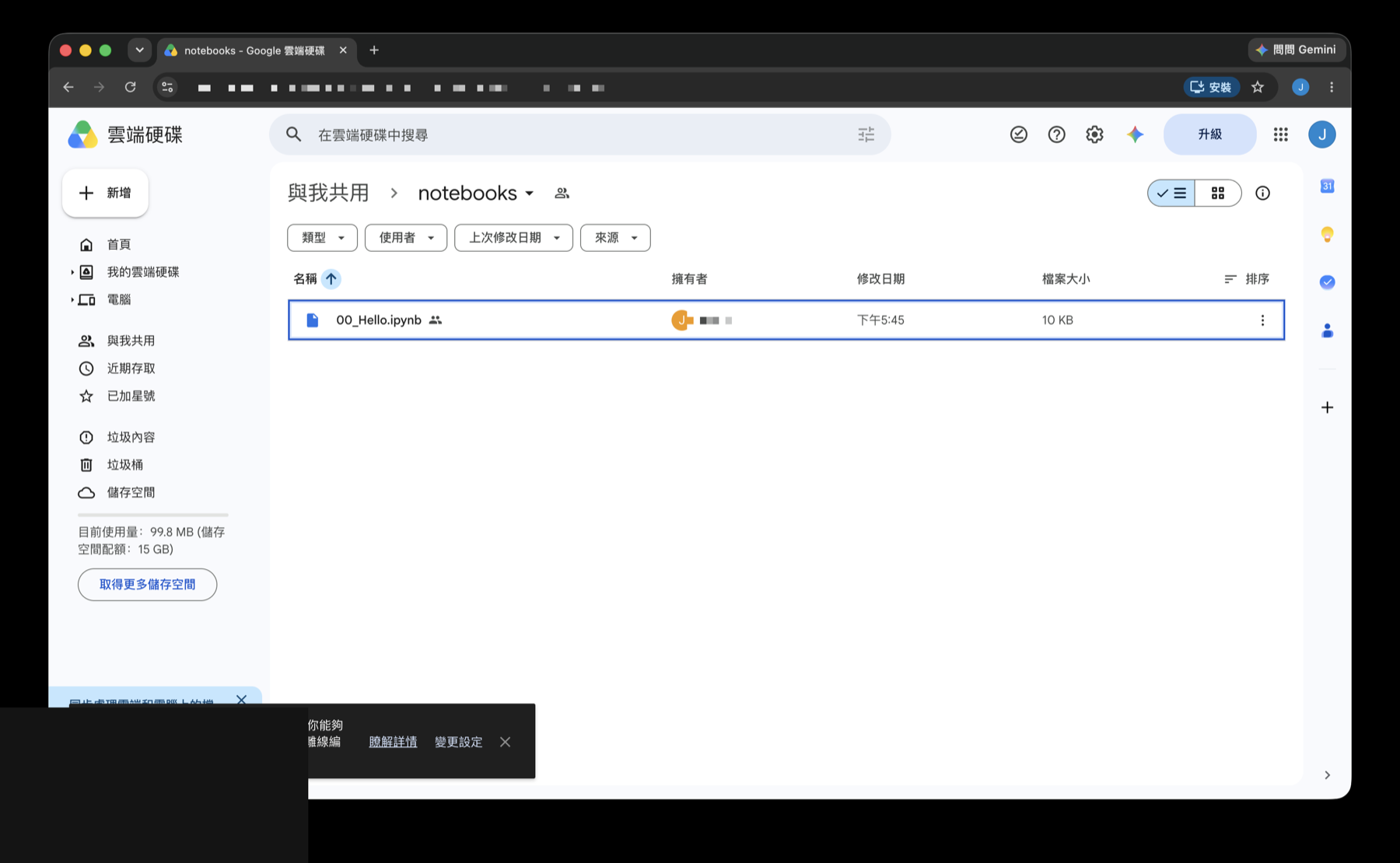
Step 2: Open it, and you’ll hit “No preview available”
Double-click the file and Drive gives you a deflating screen: No preview available in the middle, with just a blue Download button underneath.
The file is not broken, and you don’t need to download it. You’re simply missing an app that can open it.
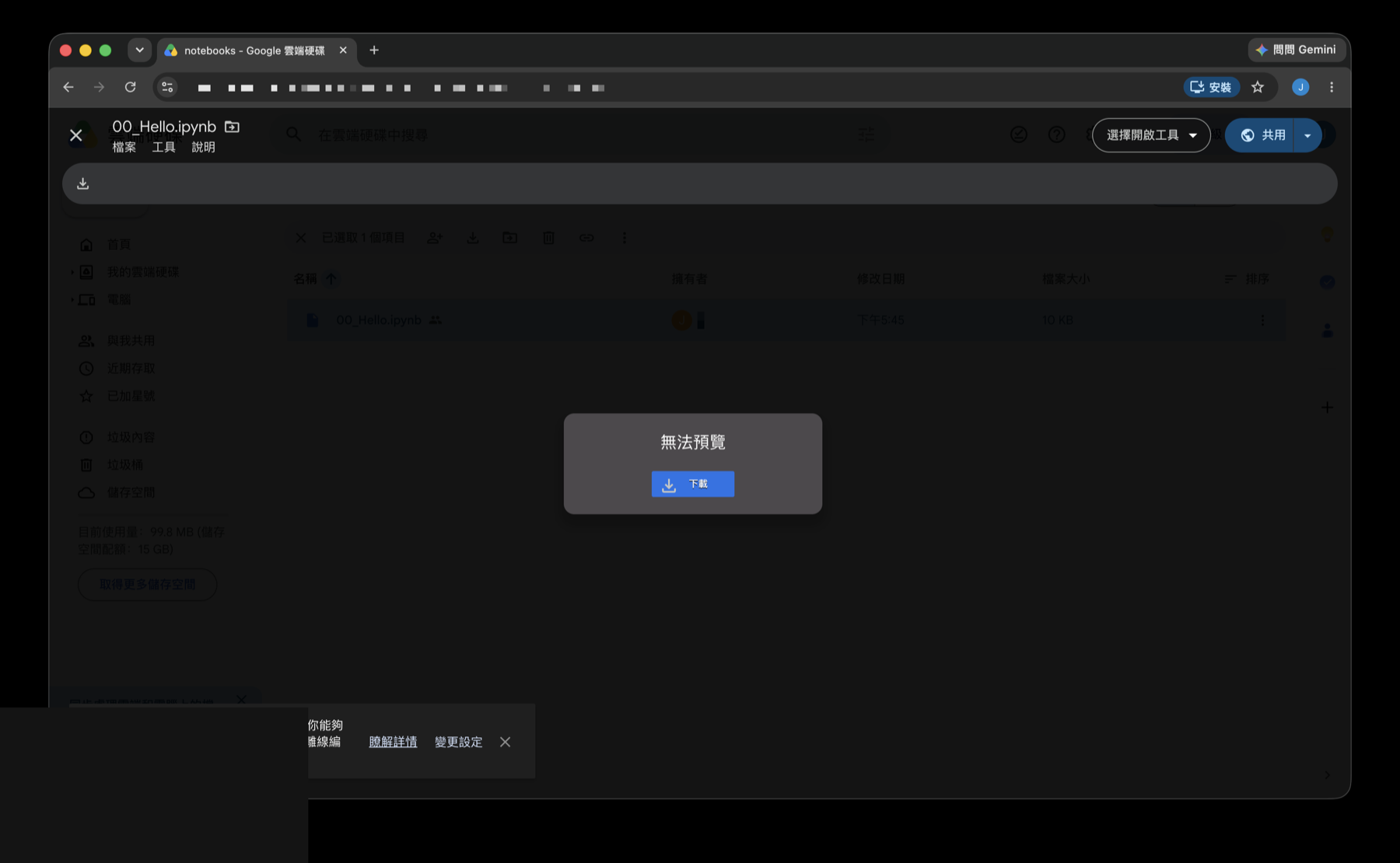
Step 3: Open with → Connect more apps
Look at the top right. There’s an Open with dropdown. Click it and you’ll see two options:
- Open in new tab
- Connect more apps ← click this one
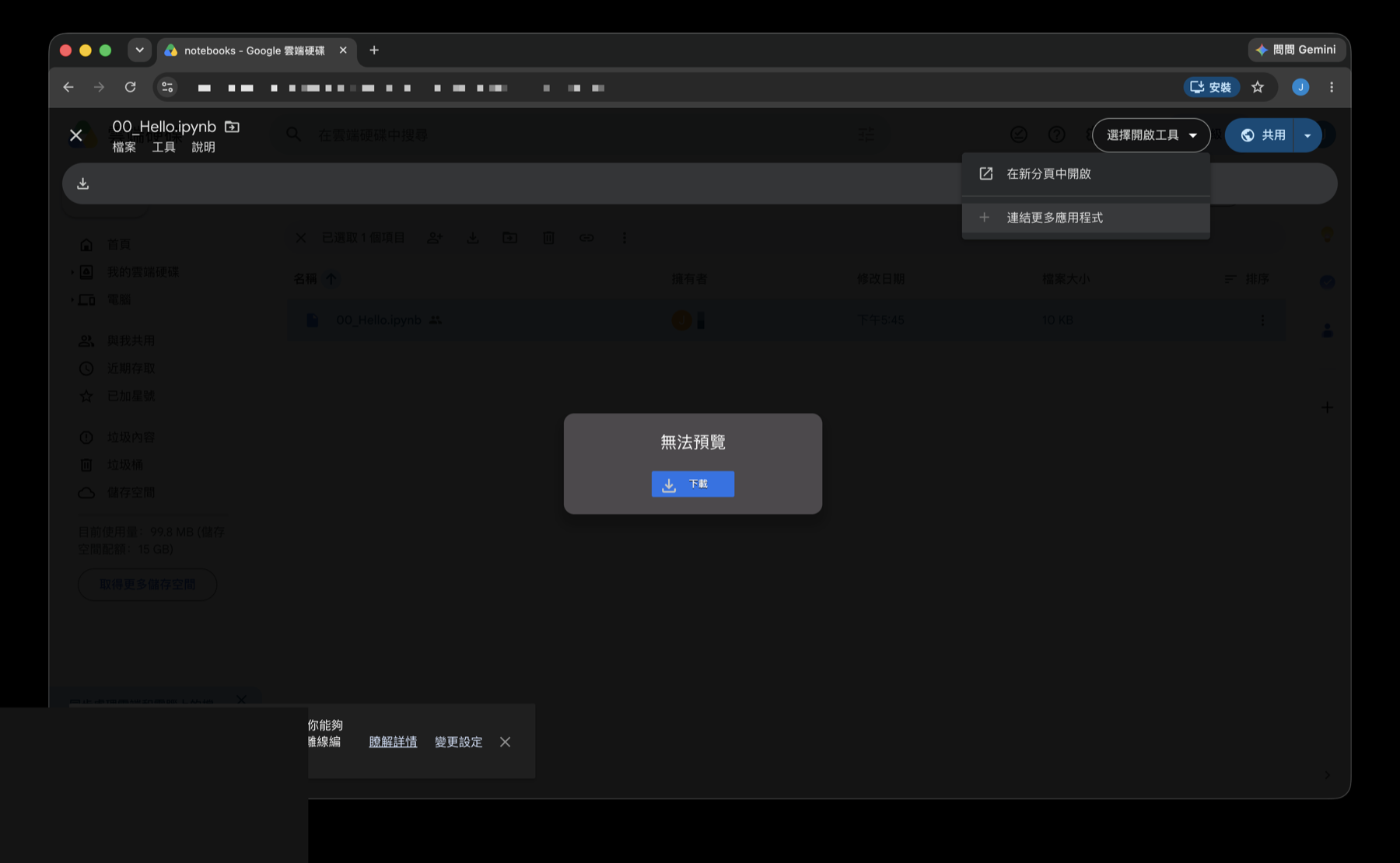
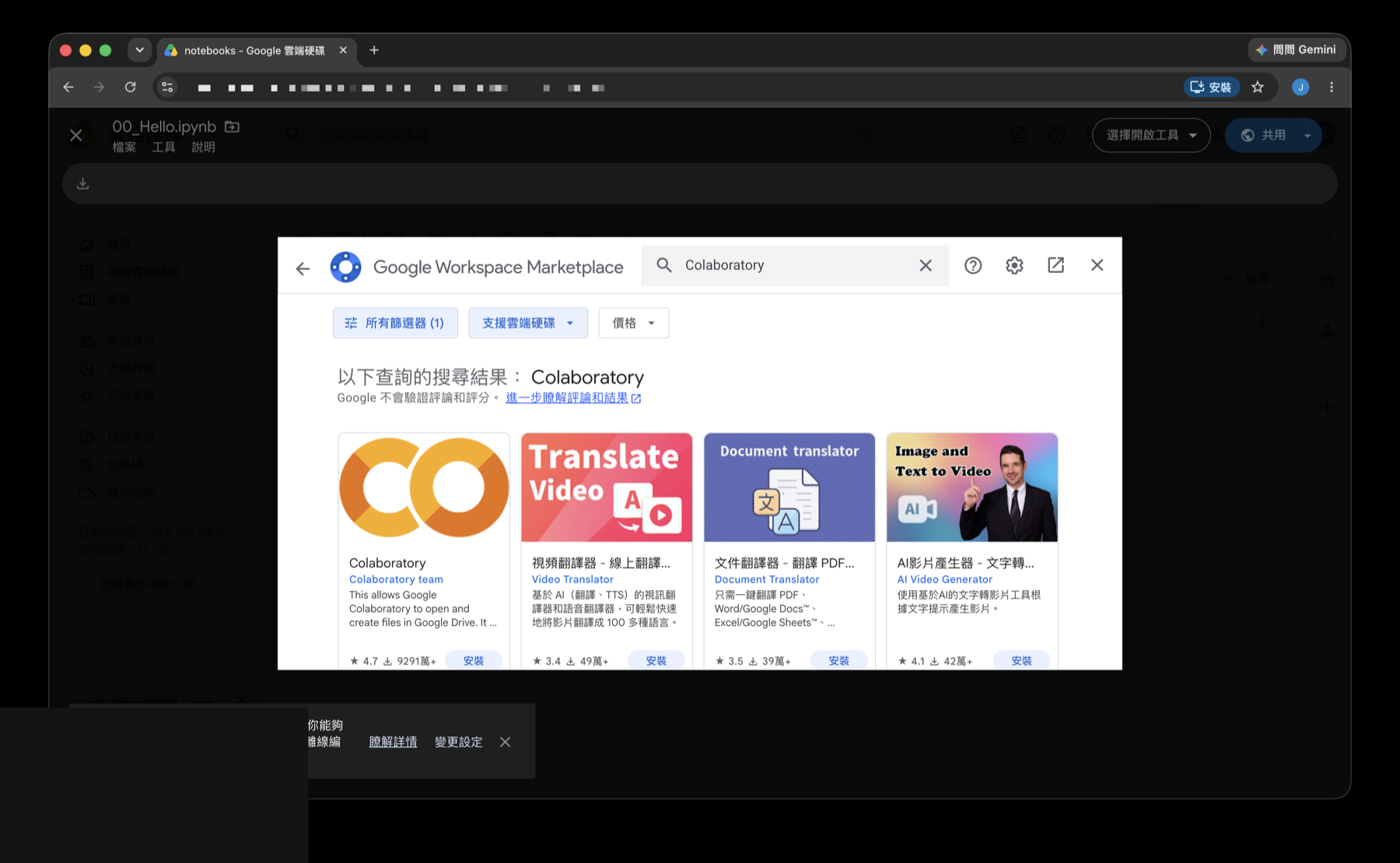
Step 4: Search for Colaboratory in the Workspace Marketplace
The Google Workspace Marketplace window opens. Type Colaboratory in the search box at the top — actually, typing just c is enough; it’s the first suggestion.
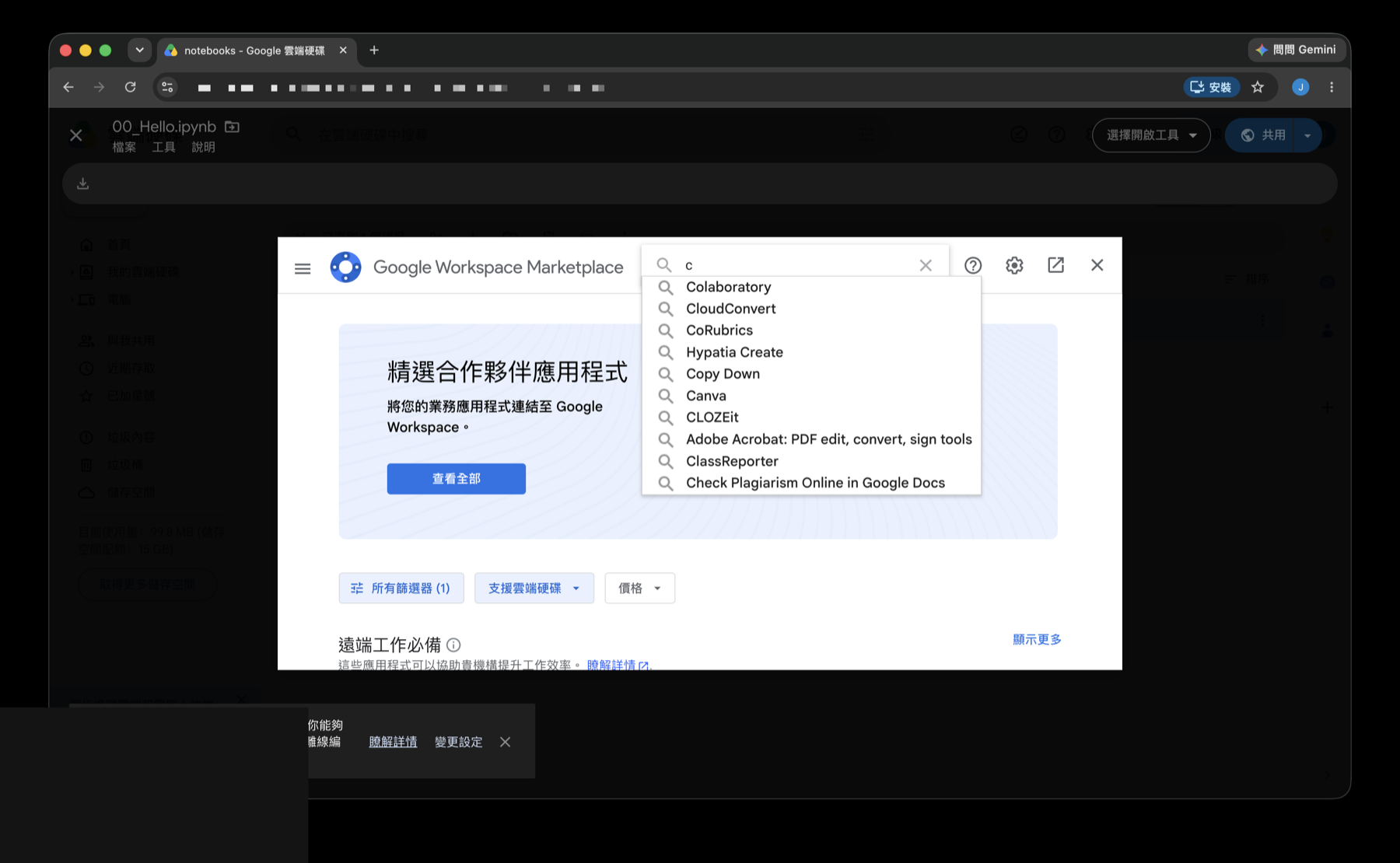
The first result card is the official Colaboratory (author shown as “Colaboratory team”, the yellow CO icon, rated around 4.7 with 90M+ installs). Look for that card specifically — don’t click the translation tools sitting next to it.
Click Install at the bottom right of the card.
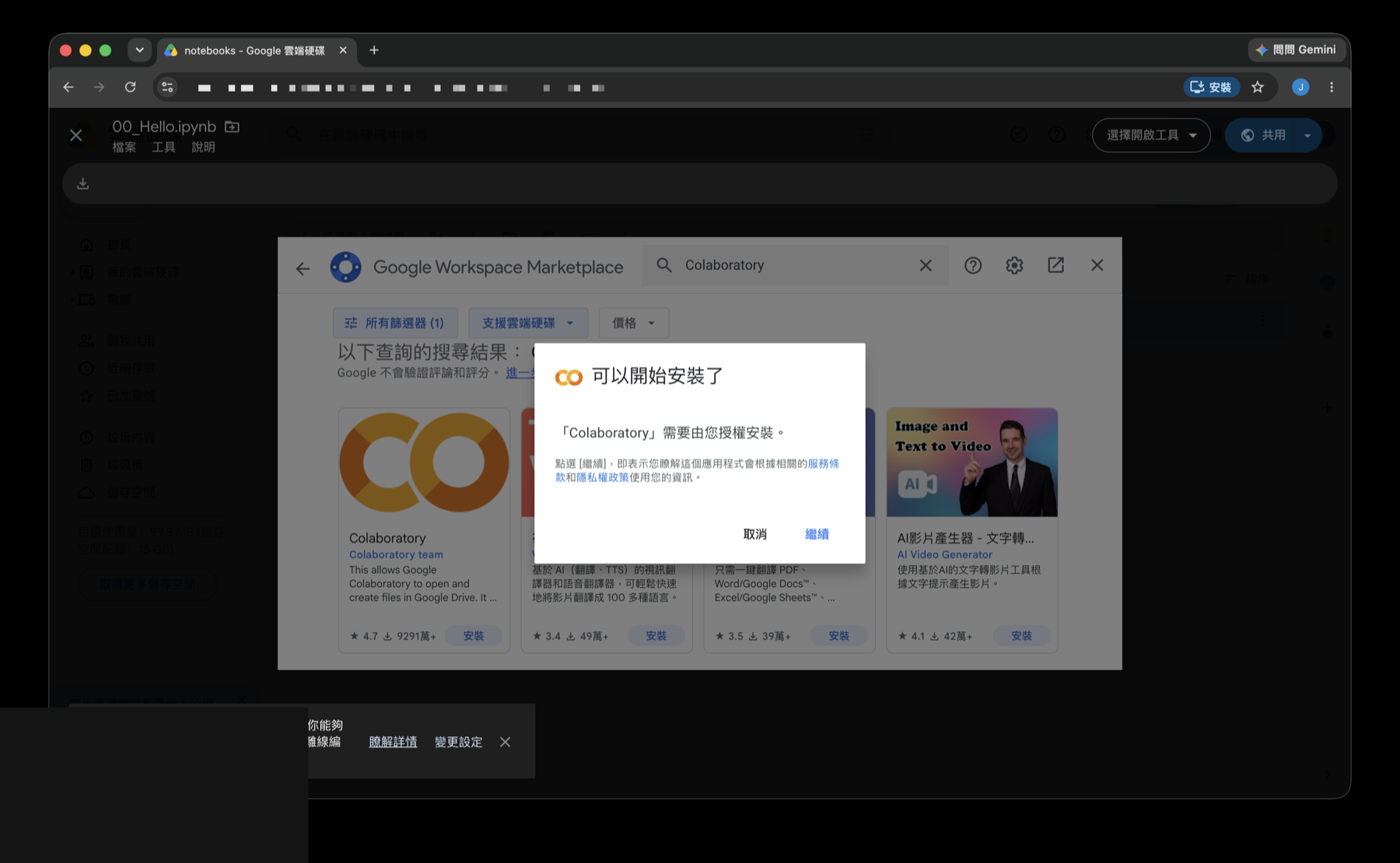
Step 5: Authorize the installation
A small dialog appears — Ready to install — explaining that “Colaboratory” needs your authorization. Click Continue.
Next comes the familiar Google account consent screen: Sign in to “Google Colaboratory”, listing the personal info it will receive (your name, profile picture, and email address). Double-check the account shown is the one you want to use, then click Continue.

Step 6: Back to Drive — now open it with Colab
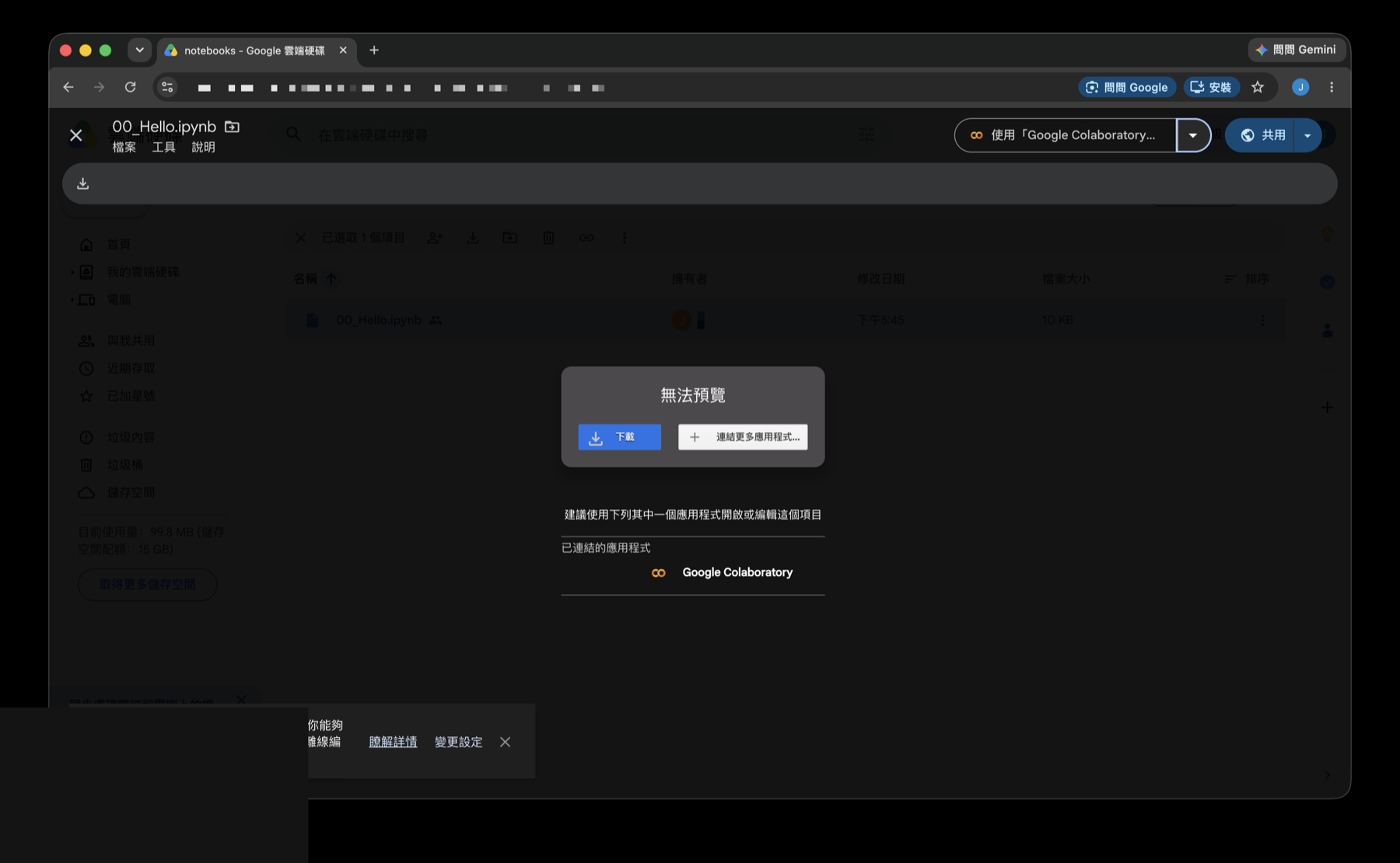
Return to that “No preview available” screen and you’ll notice three things changed:
- A Connect more apps… option now sits next to Download
- Below it: Connected apps: Google Colaboratory
- The top-right button now reads “Open with ‘Google Colaboratory’”
Click that top-right button and the file opens in Colab in a new tab.
You only do this once. From now on, any .ipynb in your account opens in Colab on a double-click.
Step 7: Get oriented — code comes in cells
Once the file opens, learn three areas:
- The “Table of contents” panel on the left: the notebook’s sections; click to jump around.
- The content area in the middle: text and code alternating. Each grey code block is a cell.
- “Connect” at the top right: whether you’re attached to one of Google’s machines. It connects automatically the first time you press ▶.
How to press ▶: hover over the left edge of a cell and a round ▶ button appears. Click it to run that one cell.
The file shown in this guide is a small “environment self-check” exercise, broken into a few stages: can it run code, can it read data, can it draw a chart. You just go top to bottom, pressing ▶ once per cell.
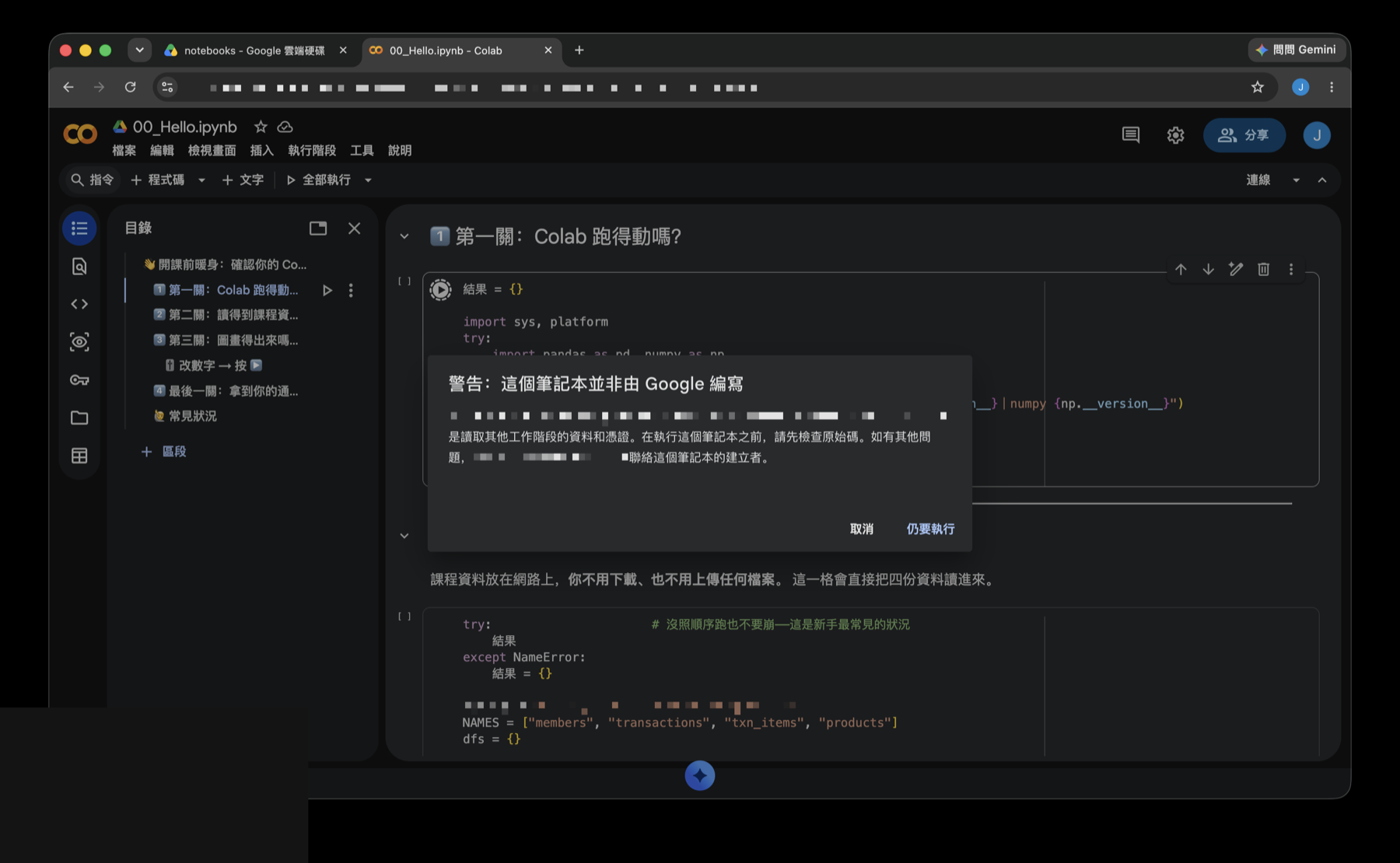
🚨 “Warning: This notebook was not authored by Google”
Almost everyone sees this the first time they press ▶: “This notebook was authored by ⟨someone’s email⟩. It may request access to your data stored with Google…”
This is normal. As long as the file came from someone you trust, click Run anyway.
Google is reminding you of something real: code written by someone else will run with your account’s permissions. So conversely — don’t blindly run a .ipynb from an unknown source. This warning earns its keep.
Step 8: What a finished cell looks like
After you press it:
- The
[ ]on the left becomes[1](the 1st cell executed in this session), with the elapsed time below it. - A green ✅ check mark appears.
- The output prints directly below the code — in this example, the Python and package versions:
Python 3.12.13 | pandas 2.2.2 | numpy 2.0.2. - The top right switches from “Connect” to RAM/Disk usage bars, meaning the machine is now running.
The first cell is usually slow (10–30 seconds) because a cloud machine has to spin up for you. Everything after that is fast.
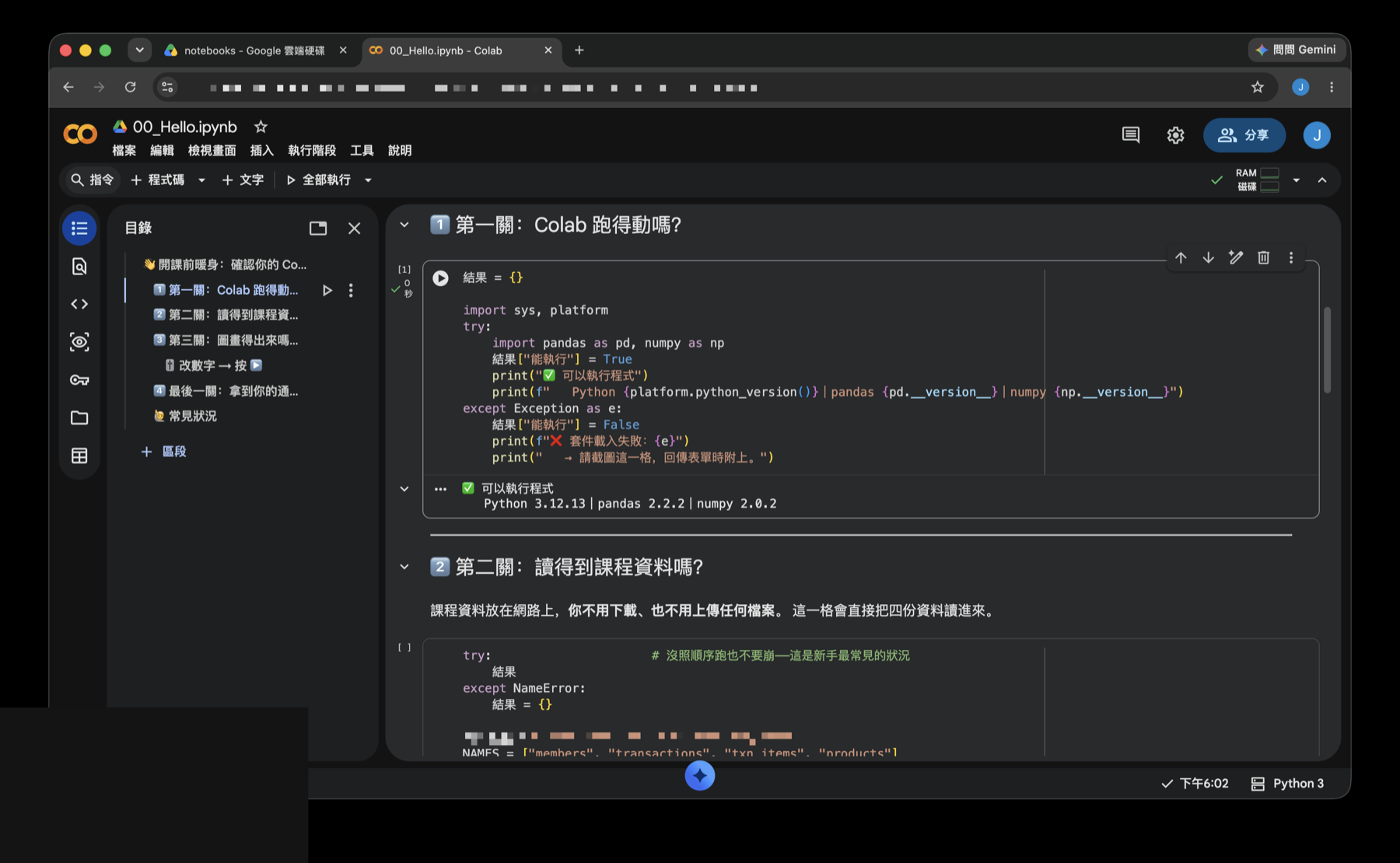
Keep going down the notebook; each cell’s result appears under itself. The second cell in this example loads four datasets and prints how many rows each has.
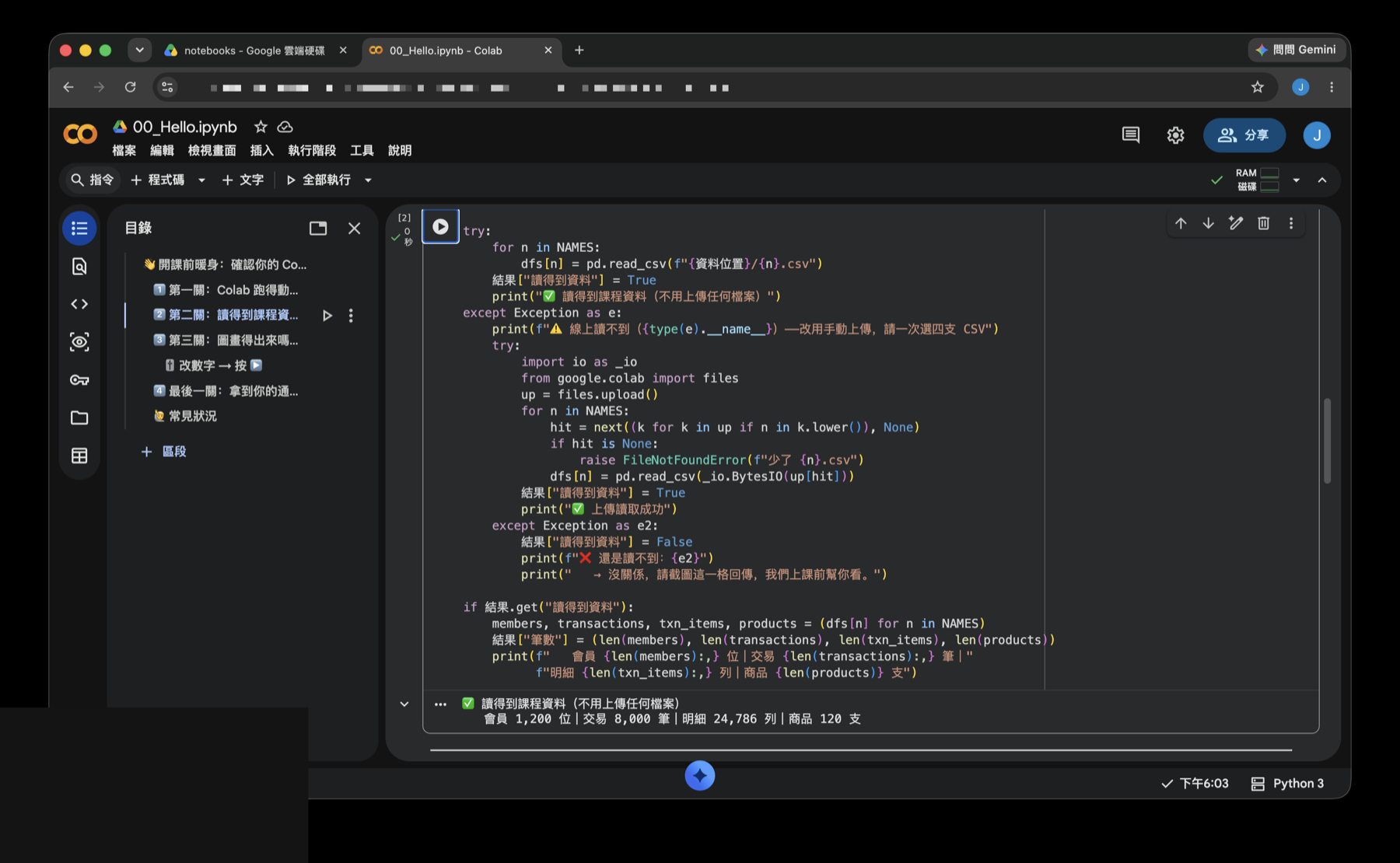
[1],[2]numbers don’t mean “cell #1, cell #2” — they mean “the 1st, 2nd thing you clicked”. Jump around and the numbering jumps with you, which is exactly why the next section insists on running things in order.
Step 9: Change parameters without touching code (form sliders)
Colab has a feature that’s wonderfully beginner-friendly: forms. Whoever wrote the notebook can turn a number into a slider, so you drag it instead of editing code.
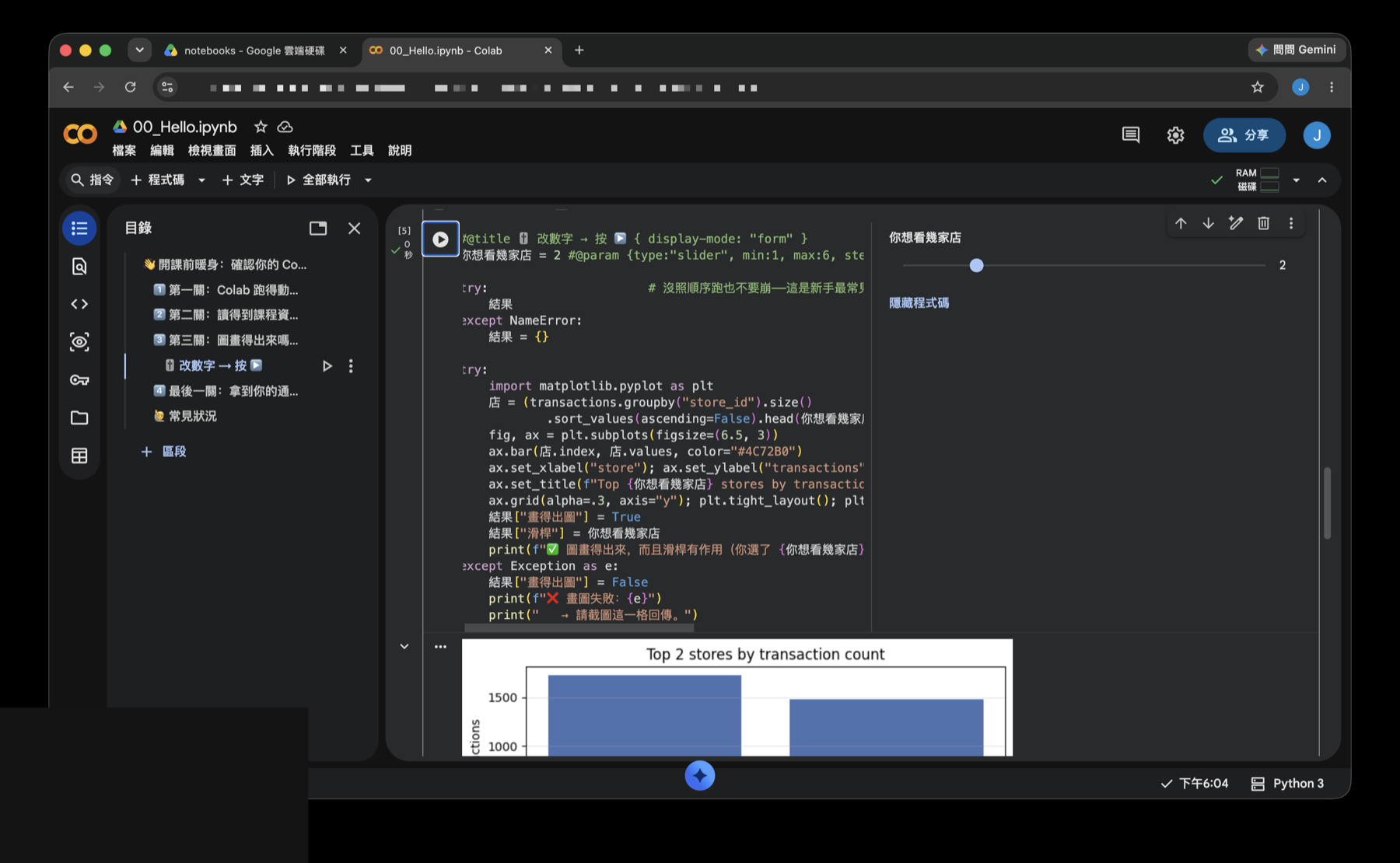
The slider in this example is labelled “how many stores to show”. Set it to 6, press ▶, and a bar chart of the top 6 stores appears below, along with ”✅ the chart works, and the slider takes effect (you chose 6 stores)”.
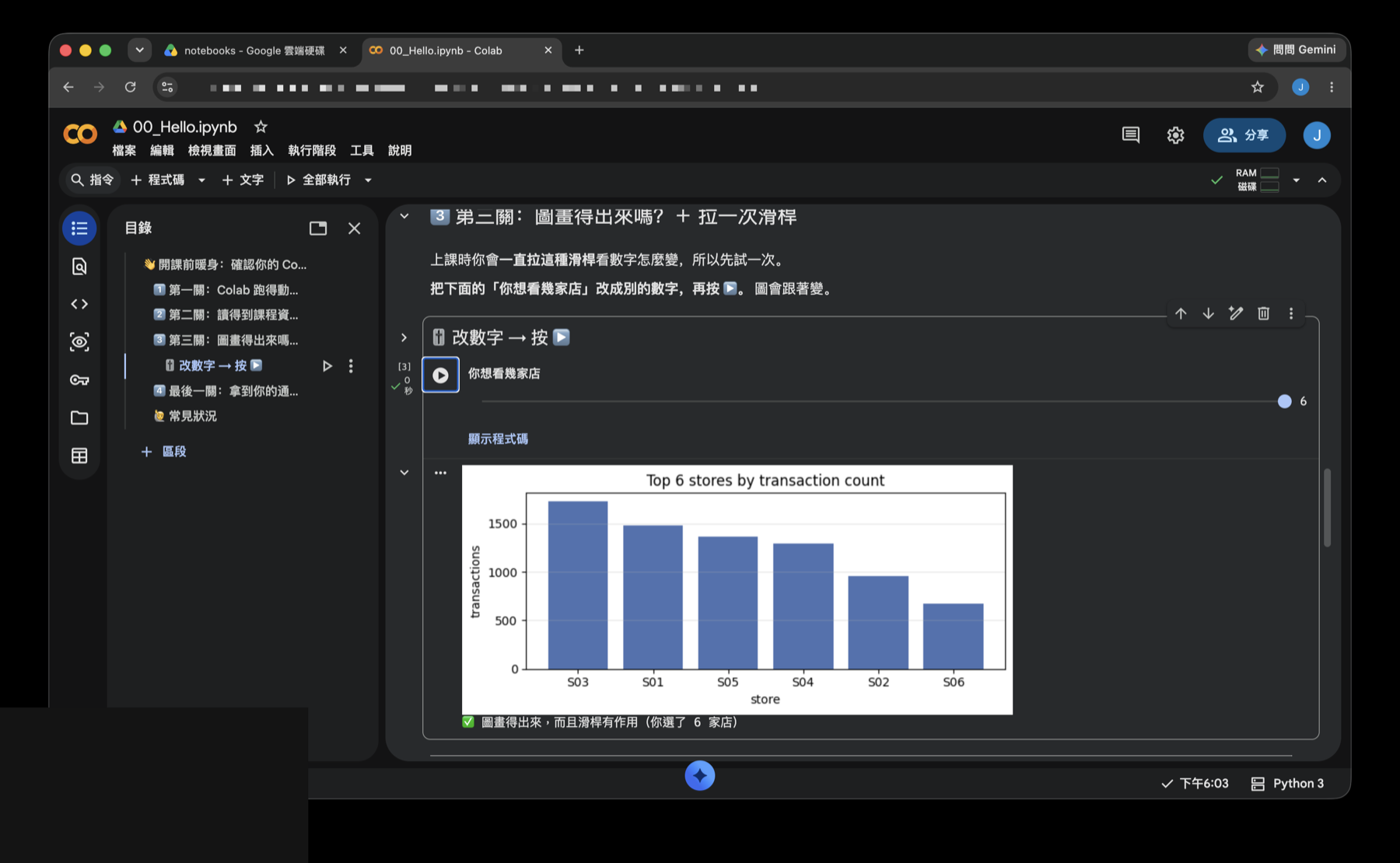
Curious what’s behind the slider? Click Show code and you’ll see a line with a #@param {type:"slider", min:1, max:6, ...} comment — that’s the magic that turns a variable into a slider. Don’t worry if it looks cryptic; a glance is enough.
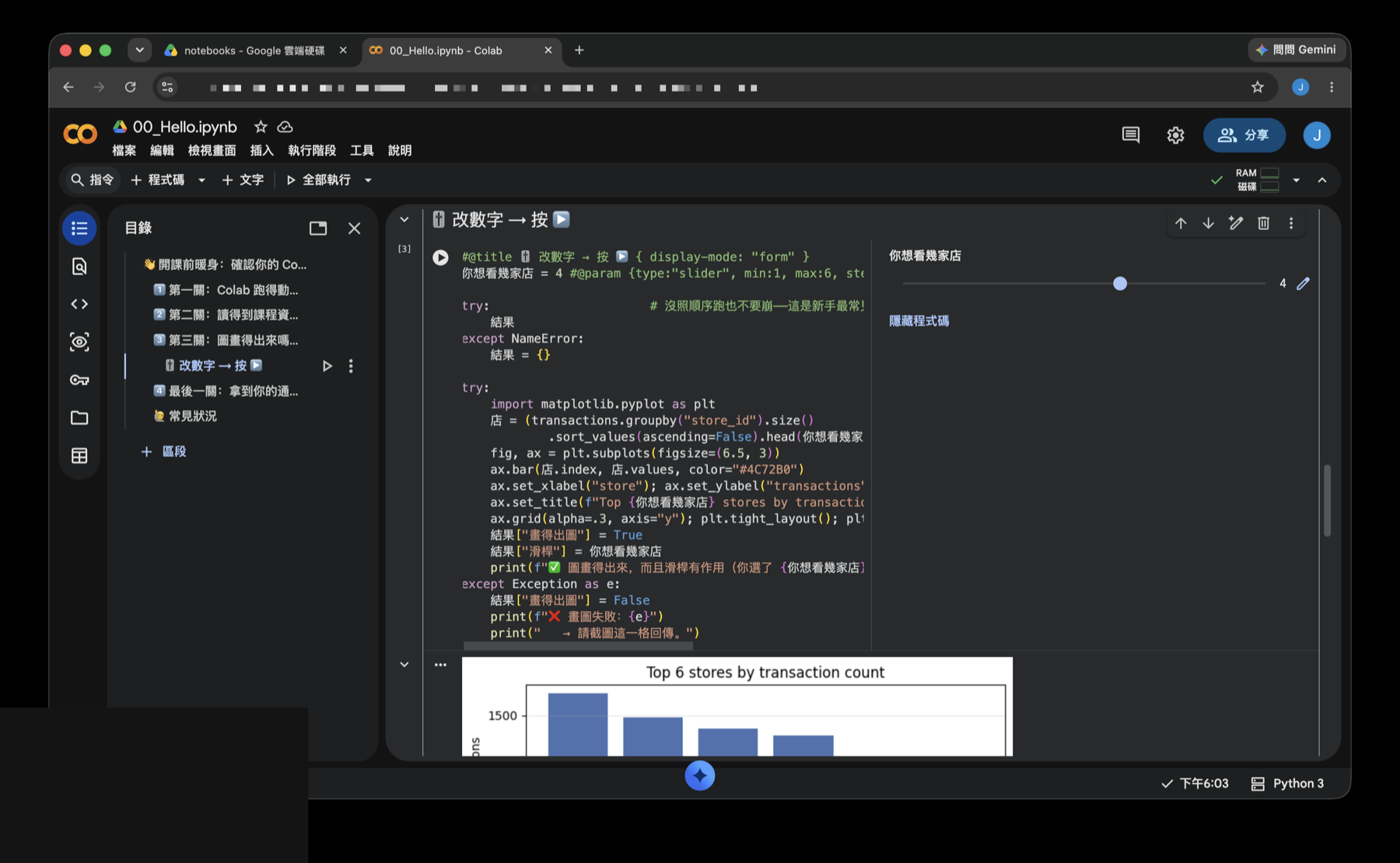
Key idea: after changing a parameter, press ▶ again. The slider does not re-run anything by itself. Drag it to 2, press ▶, and the title becomes Top 2 with only two bars left.
Step 10: The permission popup when downloading results
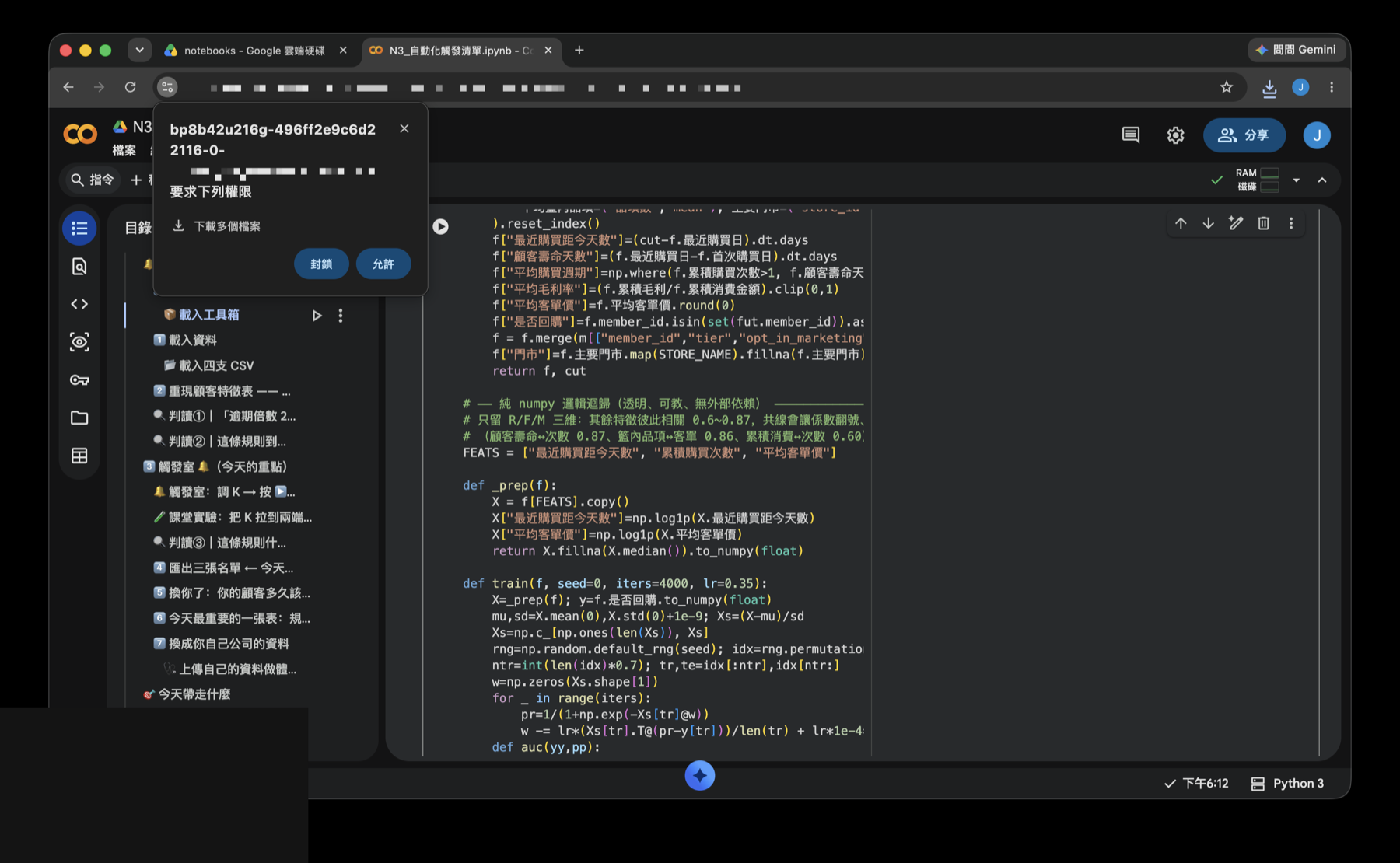
If the notebook produces files (a list, a report, a chart), your browser may show a popup in the top-left when that cell finishes, asking whether some colab.googleusercontent.com address may Download multiple files.
Click Allow, otherwise the files never reach your Downloads folder. People who click Block often assume the code is broken.
🚨 Common situations and fixes
A work account can’t open Colab — the most common trap, and the hardest to fix on the spot
If you’re signed in with a company or school Google Workspace account, the admin may have disabled third-party apps like Colab entirely. Symptoms: the Marketplace install fails, or it installs but the file still won’t open.
Fix: use a personal Gmail. Open the file with your personal account (ask the sender to share it with that address too) and it usually just works.
Test this before the day you actually need it. Discovering your account is locked down an hour before you need results is not something you can fix in time — which is exactly why many courses hand out a “warm-up notebook” and ask you to run it in advance.
Red NameError text: you ran cells out of order
Cells depend on each other — later ones use values computed earlier. Skip around and the later cell throws NameError: name 'xxx' is not defined.
Fix: menu Runtime → Run all, from the top. That resolves the vast majority of red text.
You came back later and all the variables are gone
Colab reclaims idle machines. When you return, your code is still there (it lives in Drive), but all outputs and variables are cleared.
Fix: again, Runtime → Run all. Nothing is broken; this is by design.
Where do my edits get saved?
The file lives in Drive, not on your computer. If it was shared with you as view-only, your changes can’t be saved back — Colab will prompt you to use File → Save a copy in Drive and edit your own copy.
I can’t find “Open with”
That button only exists on the file preview screen. Merely selecting the file in the list won’t show it. Double-click the file to reach the “No preview available” screen, and it’s there in the top right.
What you can do now
- Teach your Google account about Colab (a one-time setup); after that any
.ipynbopens on a double-click - Read Colab’s cell-by-cell model: press ▶, follow the
[1] [2]numbering, find output below the code - Recognize the “not authored by Google” warning and know when “Run anyway” is fine
- Use form sliders to change parameters — and remember to re-run after changing them
- The universal unsticking move: Runtime → Run all
Want your own data to practice on? Start with a Kaggle account — it has a huge library of free datasets and also lets you run notebooks in the cloud.
這篇文章對你有幫助嗎?
💬 問答區
卡關了?直接在這裡問,其他讀者和作者都能幫忙解答。
載入中...
Found this useful? Share it with a friend who’s also getting their hands dirty
Share on LINE